Document Search Software: How to Choose for PDFs, Word and Scans
Short answer: The right document search software reads every format you use, runs OCR so scanned pages become searchable, lets you search by meaning as well as exact words, and processes files where your confidentiality rules allow, ideally on your own computer. After that, compare the price model and test it on a real folder before committing.
Free to try (1 folder, 200 files) · US$19.99 beta price · Mac & Windows
Most professionals start looking for document search software after the same frustrating moment: you know a document exists, you remember roughly what it said, and neither the filename nor your operating system's search box will surface it. The problem is usually not you. It is that most search tools only match exact words, skip scanned pages, or never look inside certain file types.
This guide covers what to check before you buy: which formats a tool actually reads, how it handles scans, the difference between exact and meaning-based search, where your files are processed, and how to judge price. It is written for individuals and small teams with confidential files, not enterprise IT departments.
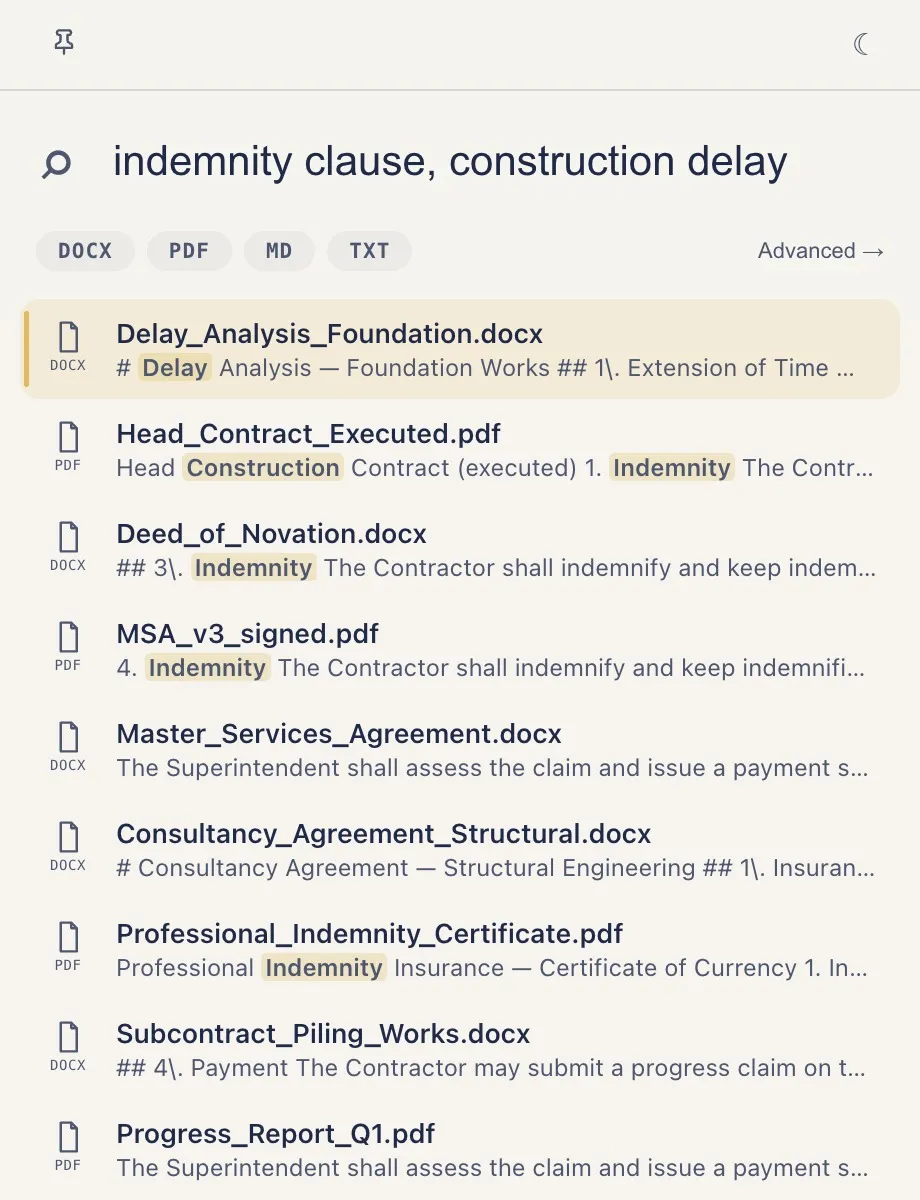
What document search software does
Document search software indexes the contents of your files so you can find a document by what is inside it, not just by its name or folder. That is the core difference from a basic file finder, which only looks at filenames.
Tools in this category fall into three broad types:
- Filename and metadata search: fast, but only useful if you remember what you called the file.
- Full-text (keyword) search: builds an index of the words in each document and returns files containing your terms. Classic engines such as SQLite's FTS5 full-text index work this way: they match terms, not meaning.
- Semantic search: converts passages into numeric representations of meaning so a query can match documents that express the same idea in different words.
Most buyers need either the second or third type, and some need both. The rest of this guide helps you work out which.
Format support: PDFs, Word, spreadsheets, email and scans
Good document search software reads the text inside every format you actually store, and runs OCR on scanned pages so they are searchable too. A tool that skips even one common format leaves a blind spot you will not notice until the day you need that file.
Before buying, list the formats in your working folders. For most professionals that includes:
- PDF (both digital and scanned)
- Word (.docx and older .doc)
- Excel and CSV
- PowerPoint
- Email files (.eml, .msg)
- Images such as PNG and JPG, including photos of whiteboards or receipts
Why scans need special handling
A scanned contract or a photographed invoice is just a picture of text. Without optical character recognition, a search tool sees no words at all. Ask three questions: does the tool run OCR automatically, does it run on your device or in a cloud service, and does it handle images as well as scanned PDFs? Our guide to searching scanned PDFs and images locally covers this in more depth.
Exact keyword search vs meaning-based search
Keyword search is best when you know the exact word, name or clause number; meaning-based search is best when you only remember the idea. Neither is strictly better, and the right choice depends on how you usually look for things.
Keyword tools shine for precise lookups: a case number, a part code, a client's surname, an exact phrase in quotes. Many support Boolean operators and wildcards, which matter for legal review or compliance work.
They struggle when your memory and the document use different words. Searching for "termination notice period" will miss a clause that says "either party may end this agreement on 30 days' written notice". Semantic search handles this by comparing meaning. The technique is described in research on sentence embeddings for comparing text by meaning, and it is what lets a query match a passage with no shared keywords.
Here is how the main options compare:
| Type of tool | Matches by | Scanned pages | Where files are processed |
|---|---|---|---|
| Built-in OS search (Windows Search, Spotlight) | Filenames and indexed text | Varies | Your computer |
| Keyword desktop tools (e.g. DocFetcher, Agent Ransack) | Exact words, operators | Varies by tool | Your computer |
| Cloud drive search (e.g. Google Drive) | Keywords within the service | Varies | Provider's servers |
| Local semantic search (e.g. Fossick) | Meaning | On-device OCR | Your computer, offline |
For a fuller comparison, see semantic search vs keyword search for documents.
Where your files are processed
For confidential documents, the most important question is whether indexing and search happen on your own computer or on a third party's servers. Search quality can be improved later; a copy of client files on someone else's infrastructure cannot be undone.
Cloud search is convenient because the files already live there. Google Drive's search, for example, works over files stored on Google's servers. Some AI assistants and document tools go further and require you to upload files before they can be searched or analysed.
If you handle privileged legal material, client financials, health information or unreleased engineering designs, that upload may conflict with engagement letters, firm policy or data-protection obligations. Local tools avoid the question entirely: the index sits on your disk, next to the documents.
A practical test: disconnect from Wi-Fi and run a search. If the tool still indexes and finds documents, processing is genuinely local. If it fails, your files or queries are going somewhere.
Price and licensing: what to compare
Compare the total cost over the years you expect to use the tool, not just the first-year figure. Document search is something you keep for a long time, so ongoing fees add up while a one-time licence does not.
Things to check:
- Free tools: often excellent for keyword search, but check OCR support, format coverage and whether the project is still maintained.
- Ongoing fees: common for cloud and enterprise products; multiply by three to five years.
- One-time licences: pay once and keep the software; confirm whether updates are included.
- Refund terms and trials: a trial on your own files tells you more than any feature list.
As one example, Fossick is a single one-time purchase with no subscription, and the licence includes every update and a 14-day money-back guarantee; details are on the pricing page.
Where Fossick fits, and where it does not
Fossick, a desktop app for Windows and Mac that searches your local documents by meaning entirely offline, is built for professionals who remember what a document said but not what it was called. You type what you remember and it returns the files that match the idea.
What it does:
- Reads PDF, Word (.docx, .doc), Excel, PowerPoint, OpenDocument text, plain text, Markdown, CSV, HTML, email (.eml, .msg) and images (PNG, JPG).
- Runs OCR on scanned PDFs and images on your device.
- Uses a small open embedding model, all-MiniLM-L6-v2 (about 22 MB, 384 dimensions), running locally.
- Re-indexes incrementally, so only new or changed files are processed again.
In one measured test on an 8 GB Apple M1 MacBook, a 52-document mixed folder (including scanned pages) was indexed from scratch in about 81 seconds, re-checked in about 7 seconds when unchanged, and searched in about 15-20 ms median per query. That is a small folder, so treat it as an indication rather than a promise for very large archives.
What it is not: Fossick is search, not chat. There is no chatbot, no generative AI and no summaries; it finds documents and you read them. If your work depends on Boolean operators, exact-phrase matching or e-discovery workflows, a dedicated keyword tool is the better fit, and some people run both.
You can try it on your own files: the trial needs no sign-up or card and covers 1 folder with up to 200 files. Download it here, point it at a real working folder, and search for something you half-remember.
Frequently asked questions
What is the difference between document search software and desktop search?
The terms overlap heavily. Desktop search usually means searching everything on your computer, including filenames and apps, while document search software focuses on reading the contents of documents such as PDFs, Word files and email. For finding files by what they say, content reading and OCR matter more than the label.
Can document search software search scanned PDFs?
Only if it runs OCR (optical character recognition), which converts images of text into searchable text. Many tools skip scanned pages silently. Check that OCR is built in, that it covers images as well as PDFs, and whether it runs on your device or in the cloud.
Is free document search software good enough?
For exact keyword searches over text-based files, free tools can work well. They are less likely to offer meaning-based search or built-in OCR, so check those features against how you actually search. Testing on your own folder is the quickest way to find out.
Does Fossick upload my documents?
No. Text extraction, OCR, embedding and search all run on your computer, and it works with Wi-Fi turned off. Only licensing touches the internet.
Can Fossick answer questions about my documents?
No. Fossick is semantic search, not a chatbot: it finds the documents that match what you describe, but it does not generate answers or summaries. You open the results and read them yourself.