How to Search Inside Files on Windows
Short answer: To search inside files on Windows, open the folder in File Explorer and type content: followed by your word or phrase in the search box. For reliable results, open Indexing Options and set each file type to "Index Properties and File Contents". Scanned PDFs, images and half-remembered wording need a dedicated tool.
Free to try (1 folder, 200 files) · US$19.99 to keep · Mac & Windows
You know the document exists. You remember a clause, a figure, or roughly what the email said, but not the filename. Windows can search inside files, but the setting that makes it work is buried, and the default behaviour often searches names only.
This guide walks through the built-in routes first: File Explorer's content: filter, turning on file contents in Indexing Options, and a command-line fallback. Then it covers where those methods stop working (PDF coverage, scanned documents, and not remembering the exact words) and when a dedicated search tool is worth it.
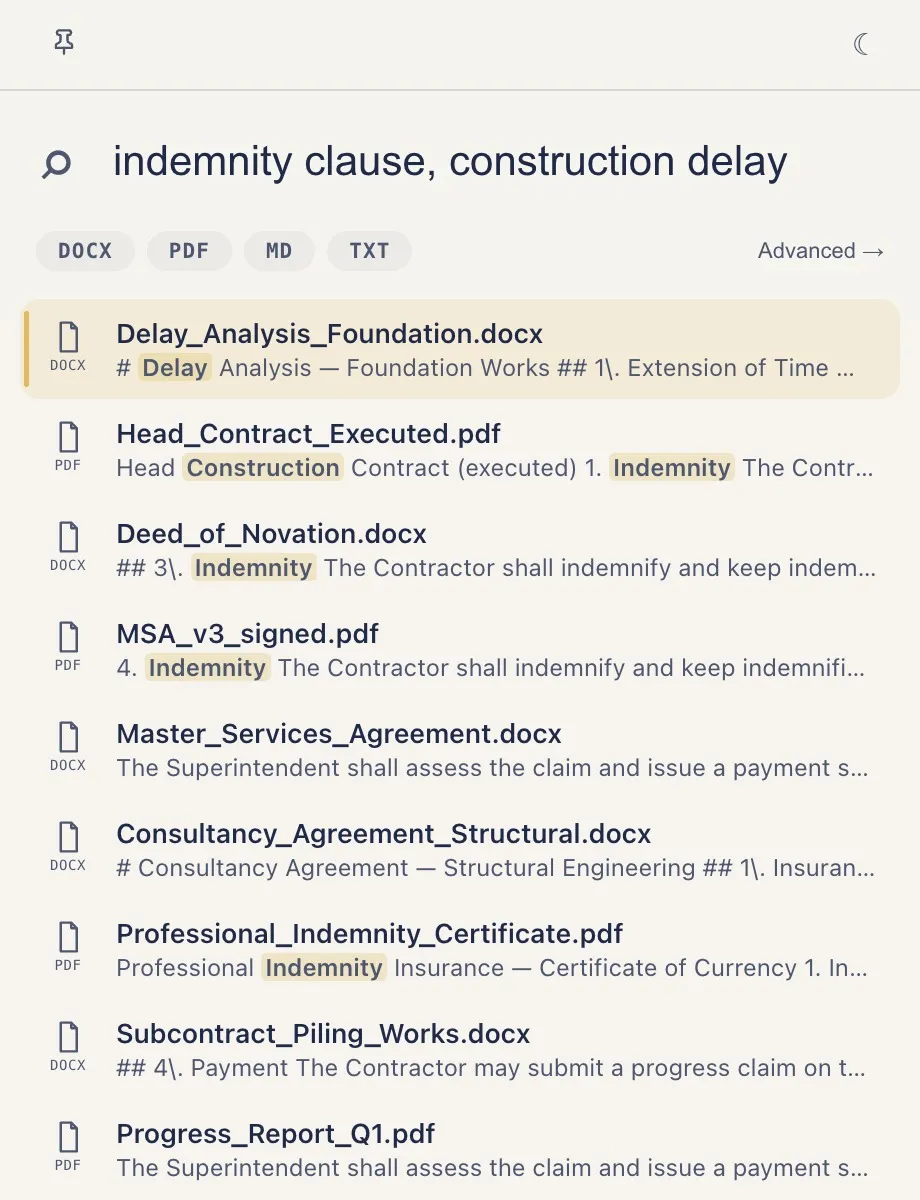
Method 1: Search inside files with File Explorer's content: filter
The quickest way to search inside files on Windows is to type content: before your search term in File Explorer's search box. Without it, Explorer leans on filenames and properties, which is why searches for a word you know is in a document often come back empty.
- Open File Explorer and go to the folder you want to search (searching one folder is faster than searching a whole drive).
- Click the search box in the top-right corner.
- Type
content:followed by your term, for examplecontent:indemnityorcontent:"termination for convenience". Quotation marks keep a phrase together. - Press Enter and wait for results to finish loading.
You can combine filters to narrow things down, such as content:invoice kind:document or content:budget datemodified:this year.
If the folder isn't indexed, Explorer may still check contents, but it has to open every file, so it is slow and can miss formats it doesn't understand. That is where Indexing Options comes in.
Method 2: Turn on file contents in Indexing Options
To make Windows reliably search inside files, add your folders to the index and set each file type to index its contents, not just its properties. Microsoft explains that Windows Search relies on an index of your files and their contents, which you can configure.
Add your document folders
- Press Start, type Indexing Options, and open it.
- Click Modify and tick the folders where your documents live (Documents, a project drive, a client folder).
- Click OK.
Index contents, not just properties
- In Indexing Options, click Advanced, then the File Types tab.
- Select an extension such as
.docx,.txtor.pdf. - Choose Index Properties and File Contents.
- Repeat for the types you care about, then click OK.
If results still look stale, go back to Advanced and click Rebuild. On a large folder this can take a while, and search results will be incomplete until it finishes.
Search non-indexed locations too
In File Explorer, open Options (Folder Options), go to the Search tab, and enable Always search file names and contents. This helps for drives you don't want indexed, at the cost of slower searches.
If contents still aren't showing up after all this, our guide to Windows Search not indexing file contents covers five common causes and fixes.
Method 3: Search inside files from the command line
For plain-text formats, the command line can search inside files without any index. In Command Prompt, findstr /s /i "phrase" .txt searches a folder and its subfolders, case-insensitively. In PowerShell, Get-ChildItem -Recurse -Filter .csv | Select-String "phrase" does the same with more flexible output.
The catch is that these commands read raw text. They work well for .txt, .csv, .md, .html and log files, but Word documents and PDFs are compressed or encoded, so a text search usually finds nothing useful. Our command to search for words in files guide covers the syntax on Windows, Mac and Linux.
Where built-in Windows search falls short
Built-in Windows search works when your files are text-based, indexed, and you remember the exact words; outside those conditions it misses documents.
- PDF coverage varies. Whether Windows can read the text inside a PDF depends on a PDF filter (iFilter) being installed and registered. Some machines have one, others don't, and results can silently exclude PDFs. See searching inside PDFs on Windows for the details.
- Scanned documents are invisible. A scanned contract or a photographed receipt is an image of text. Unless something runs optical character recognition (OCR) to convert it to machine-readable text, there are no words for Windows to match.
- You have to remember the wording. Windows Search is keyword search. If the document says "early termination fee" and you type "penalty for cancelling", it won't connect the two.
- Indexing needs maintenance. Folders get added outside the index, the index falls behind, or a rebuild is needed after an update.
For many people the third point is the real problem: you remember what a document was about, not which words it used.
When a dedicated tool like Fossick helps
A dedicated tool helps when your files include scans, when PDF search is unreliable, or when you need to find documents by what they mean rather than exact words. Semantic search aims to match the intent of a query instead of its literal terms, so "penalty for cancelling" can surface a clause about early termination fees.
Fossick is a desktop app for Windows and Mac that searches your local documents by meaning, entirely offline. You point it at a folder, it indexes the files on your computer, and you type what you remember.
- Covers the formats Windows often misses: PDF, Word (.docx, .doc), Excel (.xlsx), PowerPoint (.pptx), .odt, plain text, Markdown, CSV, HTML, email (.eml, .msg), and PNG/JPG images.
- Reads scans automatically: scanned PDFs and images are made searchable with on-device OCR.
- Stays on your machine: text extraction, OCR, embedding and search all run locally, and documents are never uploaded. It works with Wi-Fi off; only licensing touches the internet.
- Keeps up incrementally: only new or changed files are re-processed.
It is search, not chat. There is no chatbot, no generative AI, and no summaries; it shows you which documents match, and you open them yourself.
For a sense of scale, in one test on an 8 GB Apple M1 MacBook, a 52-document mixed folder (including scanned pages) indexed from scratch in about 81 seconds, and each semantic search then took about 15-20 ms. You can download Fossick and test it on your own folder before deciding.
Which method to use when
Use File Explorer for quick keyword searches in indexed folders, and a dedicated tool when scans or vague memories are involved.
| Situation | Best route |
|---|---|
| You know an exact word, file is Word or text | File Explorer content: filter |
| Searches keep missing file contents | Indexing Options: index contents, rebuild |
| Plain-text logs, CSV or code | findstr or PowerShell Select-String |
| Scanned PDFs or photos of documents | Tool with on-device OCR |
| You remember the idea, not the words | Semantic search tool |
Many people use both: Windows Search for filenames and quick lookups, and a meaning-based tool for the documents that matter. For more on the trade-off, see semantic search vs keyword search.
Frequently asked questions
How do I search for text inside files in Windows 11?
Open the folder in File Explorer, click the search box, and type content: followed by your word or phrase, such as content:"purchase order". For dependable results, add the folder in Indexing Options and set its file types to "Index Properties and File Contents".
Why doesn't Windows search find words inside my PDFs?
Windows needs a PDF filter (iFilter) to read PDF text, and not every machine has one installed. Scanned PDFs are a separate problem: they contain images of text, so nothing is searchable until OCR converts them. A tool that runs OCR on your device can cover both.
Can I search inside files without uploading them to the cloud?
Yes. File Explorer, Windows Search and the command line all run locally. Fossick also runs entirely on your device, including OCR and semantic search, and works with Wi-Fi off. It is a one-time purchase, with details on the pricing page.
Is there a free way to try meaning-based search on Windows?
Fossick has a free trial with no sign-up or card, limited to 1 folder and up to 200 files. Buying once unlocks every folder and file, and the purchase comes with a 14-day money-back guarantee.