Windows Search Not Working? How to Fix It
Short answer: When Windows Search is not working, restart the search process and Windows Explorer from Task Manager. Then restart the Windows Search service, run the Search and Indexing troubleshooter, rebuild the index from Indexing Options, and install pending Windows updates. Work through them in that order, because most search-box failures clear at the first or second step.
Free to try (1 folder, 200 files) · US$19.99 beta price · Mac & Windows
You press the Windows key, start typing, and nothing happens. Or the search panel opens, sits blank, and shows no results for a file you opened yesterday. When Windows Search is not working, it usually comes down to a stuck process, a stopped service, or a damaged index, and each has a fix that takes a few minutes.
This guide covers the search box itself failing: not opening, not accepting typing, or returning nothing. It runs from the quickest fix to the most involved. If search works but cannot see the text inside your documents, that narrower problem has its own guide: Windows Search not indexing file contents.
Diagnose the problem before you fix it
Start by working out which failure you have, because the right fix depends on the symptom. Windows Search has several moving parts: the search interface in the taskbar, a background service, and an index of your files. Each one can fail separately.
| Symptom | Likely cause | Try first |
|---|---|---|
| Search box won't open | Frozen search process or Explorer | Restart SearchHost.exe and Explorer |
| Box opens but you can't type | Text input service (ctfmon) stalled | Run ctfmon.exe |
| Box is blank or spins | Search service stopped | Restart Windows Search service |
| Opens, but no or few results | Damaged or incomplete index | Troubleshooter, then rebuild index |
| Started after an update | Corrupt system files | Updates, SFC and DISM |
One quick test helps. Open File Explorer and search a folder you know well. If Explorer finds files but the taskbar search does not, the problem is probably the search interface rather than the index.
Restart the search process and Windows Explorer
The fastest fix for a frozen or unresponsive search box is to end the search process and restart Windows Explorer. Neither step affects your files.
- Press Ctrl+Shift+Esc to open Task Manager.
- Go to the Details tab. Find SearchHost.exe on Windows 11, or SearchApp.exe (older builds: SearchUI.exe) on Windows 10.
- Right-click it and choose End task. It relaunches the next time you click search.
- On the Processes tab, find Windows Explorer, right-click it and choose Restart. The taskbar will briefly disappear and return.
If the box opens but ignores your keystrokes, the text input service may be stuck. Press Win+R, type ctfmon.exe and press Enter, then try searching again.
If nothing changes, do a full restart rather than Shut down. On many systems Fast Startup means Shut down does not fully reset Windows.
Restart the Windows Search service
If search opens but stays blank or never returns results, check that the Windows Search service is running. This background service maintains the index and answers queries. When it stops, the search box has nothing to ask.
- Press Win+R, type
services.mscand press Enter. - Scroll to Windows Search. Its service name is WSearch.
- If it is running, right-click and choose Restart. If it is stopped, choose Start.
- Double-click it and set Startup type to Automatic (Delayed Start) so it comes back after every reboot.
If the service refuses to start or stops again within minutes, the index is a likely culprit. Move on to the troubleshooter and the rebuild below.
Run the Search and Indexing troubleshooter
Windows includes a troubleshooter that checks common search and indexing faults and repairs some of them automatically.
- Windows 11: Settings > System > Troubleshoot > Other troubleshooters > Search and Indexing > Run.
- Windows 10: Settings > Update & Security > Troubleshoot > Additional troubleshooters > Search and Indexing.
It will ask what you noticed, such as files not appearing or search being slow. Tick what applies and let it finish.
Microsoft has been moving older troubleshooters into the Get Help app, so on some recent builds this entry is missing or opens Get Help instead. If you can't find it, skip ahead. The manual steps in this guide cover the same ground.
Rebuild the search index when results are missing
Rebuilding the index is the fix for search that opens and runs but returns nothing, or returns out-of-date results. Windows Search depends on an index of your files, their properties and their contents. Microsoft's own guide to search indexing in Windows explains that you can configure which locations it covers.
- Open the Start menu and type Indexing Options. If search is completely dead, open it from Control Panel instead.
- Click Modify and confirm the folders you care about are ticked, such as Documents, Desktop and any work drives.
- Click Advanced, then Rebuild, and confirm.
The rebuild deletes the index only, never your documents. Search will be incomplete until it finishes, which can take hours on a large drive. Leave the PC on and plugged in.
While you are there, check how much of your PC Windows indexes. On Windows 11, go to Settings > Privacy & security > Searching Windows. Classic covers only your libraries and desktop, while Enhanced covers the whole PC. If a specific folder never shows up, Classic mode may simply exclude it. If filenames appear but text inside PDFs or Word files does not, see the file contents indexing guide.
Install updates and repair system files
If search broke right after an update, or nothing above has worked, update Windows fully and then repair its system files.
- Go to Settings > Windows Update, install everything pending, including optional quality updates, and restart.
- Open Terminal (Admin) or Command Prompt (Admin) and run
DISM /Online /Cleanup-Image /RestoreHealth. - When that finishes, run
sfc /scannowand restart.
Also think back to anything you installed just before search stopped. Shell extensions, system tweakers and some security tools can interfere with Explorer. Uninstalling the most recent one is a fair test.
On a managed work PC, stop here and contact IT. Group Policy can disable indexing or restrict search locations, and your changes may be reverted or blocked anyway.
When search works but still can't find the document
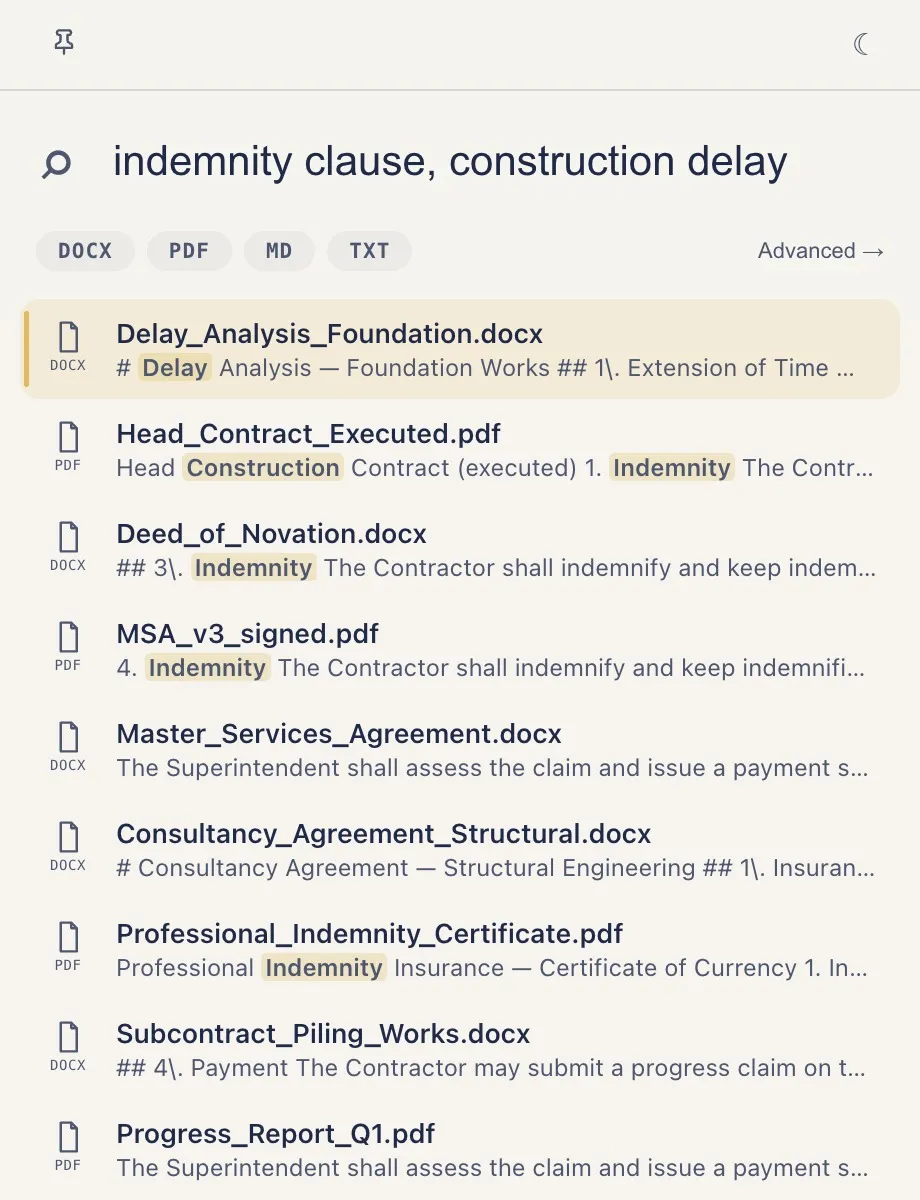
Even a healthy Windows Search is a keyword tool. It matches filenames and the words inside files, so it can't find a document when you remember the idea but not the wording. This is the classic limit of desktop search tools that index files on a local computer. Type "supplier late delivery penalty" and it will miss a contract clause that says "liquidated damages for delay".
Semantic search addresses that gap by matching the meaning of a query rather than exact terms. One option is Fossick, a desktop app for Windows and Mac that searches your local documents by meaning, entirely offline. It indexes PDFs, Word, Excel, PowerPoint, email files, text and images, and it runs OCR on scanned PDFs and images on your own machine. Nothing is uploaded, and it keeps working with Wi-Fi off. It is search, not chat. It returns your matching documents, with no chatbot, no summaries and no generated answers.
It doesn't replace Windows Search for launching apps or opening settings. It sits alongside it for document-heavy work. For scale: on an 8 GB M1 MacBook, a 52-document test folder indexed in about 81 seconds from scratch, including OCR, and searches took about 15-20 ms each. You can download it and try it free on 1 folder of up to 200 files, with no sign-up or card. The full app is a one-time US$19.99 purchase with a 14-day money-back guarantee; see pricing. For a fuller comparison, read Windows Search alternatives that find documents.
Frequently asked questions
Does rebuilding the Windows search index delete my files?
No. Rebuilding removes and recreates only the index, the database Windows uses to look files up quickly. Your documents, photos and folders are untouched. Search results will be incomplete until the rebuild finishes.
How long does it take to rebuild the search index?
It depends on how many files are in the indexed locations and how fast your drive is. A small Documents folder may finish quickly, while a large drive can take hours. Indexing Options shows a running count, and it pauses while you are actively using the PC.
Why can File Explorer find a file that the Start menu search cannot?
File Explorer can scan a folder directly even when it isn't indexed, whereas taskbar search relies mostly on the index. If Explorer finds the file and Start doesn't, the location is likely excluded from the index, or the search interface itself is stuck. Restart SearchHost.exe and check Indexing Options.
Is it safe to disable the Windows Search service?
Disabling it won't harm your files, but taskbar and Start search will become slow or stop returning file results. Explorer searches will also be much slower because they must scan folders live. It is better to fix the service, or to limit indexed locations if performance is the concern.
Why can I click the search box but not type in it?
This is usually the text input service, ctfmon, failing to start. Press Win+R, type ctfmon.exe and press Enter. If it keeps happening after restarts, check your keyboard and language settings, and install pending Windows updates.