Desktop Search Software That Stays Accurate Even With Poorly Named Legacy Files and Inconsistent Naming
Short answer: Desktop search software stays accurate with poorly named legacy files when it indexes what each document says, not its filename. Content indexing plus semantic (meaning-based) matching, with OCR for scans, lets you find 'scan0042.pdf' by its subject. For confidential archives, choose a tool that does all indexing and searching on your own computer.
Free to try (1 folder, 200 files) · US$19.99 beta price · Mac & Windows
Every long-running practice ends up with the same archive: folders called 'Old Projects (2)', PDFs named 'scan0042.pdf', and three Word files all called some version of 'final_v3_NEW.docx'. Nobody named them badly on purpose. People, conventions and scanners changed over the years, and the names stopped describing the documents. Filename search can't fix that, and a renaming project rarely gets finished.
This article explains which kind of desktop search software maintains accuracy even with poorly named legacy files and inconsistent naming, how each search method actually works, what to check before pointing a tool at a confidential archive, and a practical way to search an inherited drive without renaming anything or uploading it anywhere.
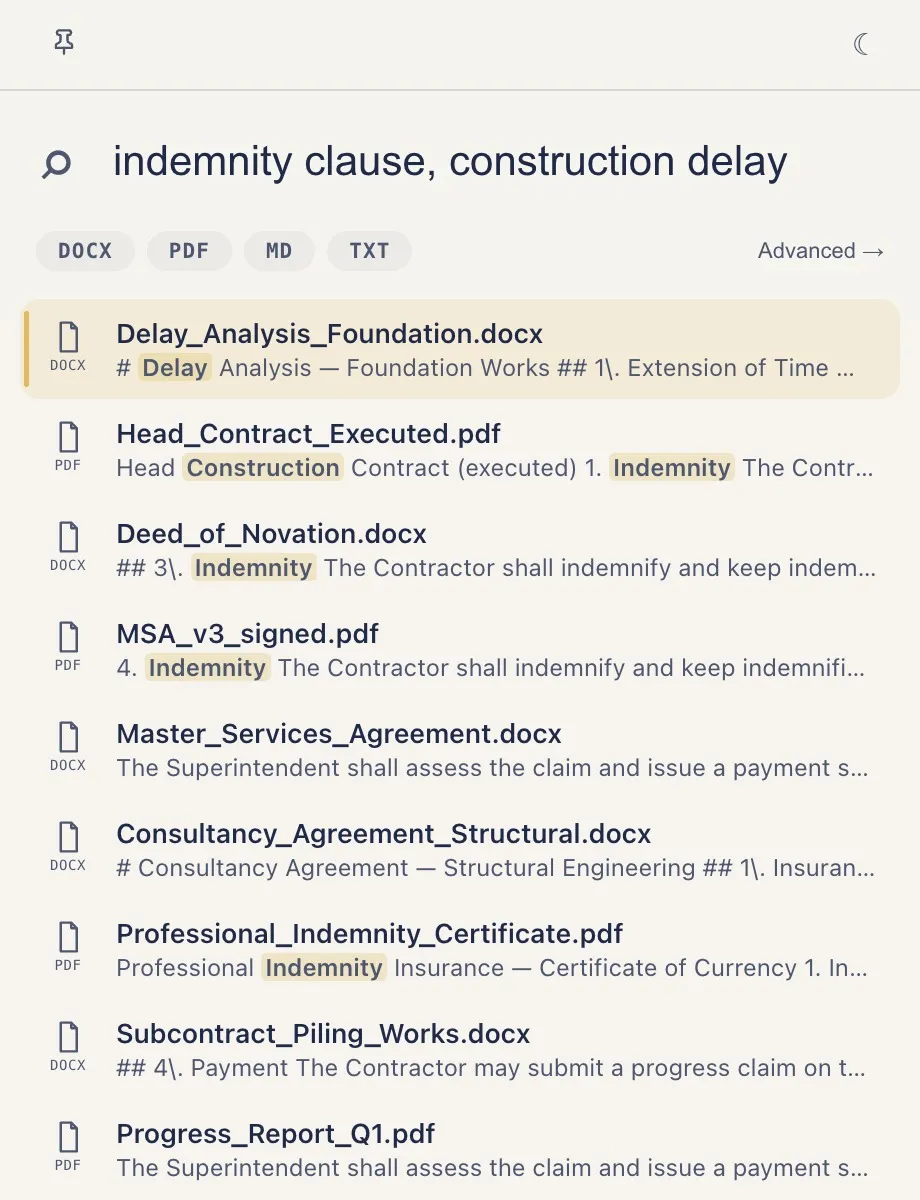
Why filename-based search fails on legacy archives
Filename-based search fails because it can only match what the name says, and legacy file names often say nothing useful. A tool that searches names and paths is excellent when you know the file is called 'Smith lease 2019.pdf'. It is useless when that lease was saved by a scanner as 'scan0042.pdf' in a folder called 'Misc'.
Old archives accumulate naming problems in predictable ways:
- Scanner and camera defaults such as 'scan0042.pdf', 'IMG_3381.jpg' or 'Document1.docx'.
- Version clutter like 'final', 'final_v3', 'final_v3_NEW' and 'USE THIS ONE', with no reliable signal about which is which.
- Competing conventions from different staff: client-first, date-first, matter number, or initials.
- Inherited drives from a departed colleague or an acquired practice, where the folder logic made sense only to its author.
Built-in tools help, but within limits. Windows Search relies on an index of files and their properties and contents, and only for the locations and file types it is configured to cover. Spotlight on the Mac also reads file contents. Both, however, match the words you type rather than what you mean, and neither helps much with a scan that has no text layer. If you've hit these limits, see our guides on a Windows Search alternative and a Spotlight alternative for document contents.
Three ways desktop search tools find files
Desktop search tools find files in one of three ways: by name, by exact words inside the file, or by the meaning of the text inside the file. Only the last two look past a bad filename, and only the last one copes with inconsistent wording as well.
Filename and path indexing
The tool records names, folders, dates and sizes. It is very fast and good for files you can name, but it never opens the document.
Keyword (full-text) indexing
The tool extracts text from each file and builds an index of the terms. Classic engines such as SQLite's FTS5 full-text index match terms, not meaning. If the contract says 'termination for convenience' and you search 'cancel early', you may get nothing.
Semantic (meaning-based) indexing
The tool converts passages of text into numerical vectors called embeddings, then compares your query's vector with them. Research such as Sentence-BERT showed that sentence embeddings let text be compared by meaning using vector similarity. That is why 'cancel early' can surface a clause about termination.
| Method | What it reads | Finds 'scan0042.pdf'? | Copes with different wording? |
|---|---|---|---|
| Filename search | Names and paths | Only if you know the name | No |
| Keyword full-text | Extracted text | Yes, if the text layer exists and words match | No |
| Semantic search | Meaning of the text | Yes, by topic | Yes |
| Any of these + OCR | Text in scans and images | Makes scans visible to content search | Depends on method |
For a deeper comparison, read semantic search vs keyword search for documents.
How semantic search maintains accuracy with inconsistent naming
Semantic search maintains accuracy with inconsistent naming because it never relies on the name; it ranks documents by how closely their content matches the meaning of your query. The filename becomes irrelevant to whether the right document appears.
In practice, that changes how you search. Instead of guessing a filename, you type what you remember:
- 'warehouse lease with the rent review clause'
- 'report on the cracked foundation at the north site'
- 'letter where the client disputed the invoice'
The search engine compares that description with what each document actually says and returns the closest matches, whether they are called 'final_v3_NEW.docx' or 'Document1.docx'. It also handles the drift in vocabulary that builds up over years: one colleague wrote 'engagement letter', another 'retainer agreement', and both turn up for a query about either.
Two conditions make this work on a real legacy archive:
- The text must be extractable. Scanned PDFs and photos contain pictures of words, not words. Optical character recognition converts them into text, which can then be indexed by meaning. Without OCR, a decade of scans is invisible to any content search.
- The index must cover your real file mix. Archives contain Word, PDF, spreadsheets, slide decks, emails and images, not just one format.
Semantic search is not magic. Very short or nearly empty documents give it little to work with, and poor-quality scans produce imperfect OCR text. But for the common case of a sensibly written document with a meaningless name, it removes the name from the problem entirely.
What to check before trusting a tool with a legacy archive
Before pointing any search tool at a legacy archive, check that it reads contents, handles scans, covers your file types, keeps up with changes cheaply, and does all of this without sending your files anywhere.
A short checklist:
- Content, not names. Does it index the text inside files, or only names and metadata?
- Meaning, not just keywords. Can it match a description in your words, or only exact terms?
- OCR on-device. Are scanned PDFs and images made searchable automatically, and is that OCR done on your machine?
- File coverage. PDF, Word, Excel, PowerPoint, email, plain text and images, ideally in one index.
- Incremental re-indexing. When you add files, does it re-process only what changed, or rebuild everything?
- Where processing happens. Is the archive uploaded to a cloud service for indexing or AI processing, or does everything stay local?
- What it is not. Does it quietly add a chatbot or generative summaries you would then need to evaluate for confidentiality?
The last two points matter most for lawyers, accountants, consultants and engineers. Old archives are often the most sensitive material a practice holds: closed matters, personnel records, client financials. Uploading them to make them searchable creates a new data-processing question you didn't have before. Our article on whether it's safe to search documents with AI covers that trade-off in more detail.
A practical method: search an inherited drive without renaming anything
You can make a messy archive searchable without a renaming project by indexing its contents in place and searching it by description. Here is a method that works with any content-indexing tool, illustrated with Fossick, a desktop app for Windows and Mac that searches your local documents by meaning, entirely offline.
- Copy or mount the archive locally. Point the tool at the folder as it is. Don't rename, re-sort or delete first; you'll make better decisions once you can see what's there.
- Index once, including OCR. Fossick extracts text, runs OCR on scanned PDFs and images, and builds a semantic index on your computer. As a reference point, 52 mixed documents (Word, PDF including scanned pages, Excel, CSV, Markdown; 700 KB) indexed from scratch in about 81 seconds, including model load and OCR, on an 8 GB Apple M1 MacBook (measured 2026-09-21). Larger archives take proportionally longer.
- Search by what you remember. Describe the document: the parties, the problem, the subject. On that same 52-document folder, a semantic search took about 15-20 ms median.
- Open, verify, and only then tidy. Use results to find the documents that matter, and rename just those if you want to. Most of the archive can stay exactly as it is.
- Let re-indexing stay incremental. Fossick only re-processes new or changed files; re-checking the unchanged 52-document folder took about 7 seconds.
You can test this on part of your own archive: Fossick is free to try with no sign-up or card, limited to 1 folder and up to 200 files. If it works for you, a single one-time purchase unlocks every folder and file; details are on the pricing page. Download Fossick for Windows or Mac.
Where Fossick fits, and where it doesn't
Fossick fits when the problem is finding confidential documents by content and the names can't be trusted; it is not a filename launcher, a document manager, or an AI assistant.
What it does:
- Semantic search over local files, using the open all-MiniLM-L6-v2 sentence-embedding model (384 dimensions, quantized, about 22 MB) running on your computer.
- Broad file coverage: PDF, Word (.docx, .doc), Excel (.xlsx), PowerPoint (.pptx), OpenDocument text, plain text, Markdown, CSV, HTML, email (.eml, .msg), and PNG/JPG images, with on-device OCR for scans.
- Fully offline processing: text extraction, OCR, embedding and search all run locally, and it works with the Wi-Fi switched off. Only licensing touches the internet. The index is small, about 1.9 MB on disk for the 52-document test folder.
What it deliberately does not do:
- No chat or generative AI. It returns documents; it does not answer questions, write summaries or draft text.
- No cloud account for your files. Nothing is uploaded for indexing.
- Not the fastest filename finder. If you already know a file's exact name, a dedicated filename tool or your operating system's search is the quicker route. Fossick earns its place when the name is wrong, vague or forgotten.
If that matches your archive, the Fossick homepage explains how it works in more depth, and our guide to finding a document when you can't remember its name covers more search techniques.
Frequently asked questions
Do I need to rename my legacy files before desktop search will work?
Not with a tool that indexes contents. Content and semantic search read what documents say, so meaningless names like 'scan0042.pdf' don't block results. Many people only rename the handful of files they find important after searching.
Can desktop search find scanned PDFs with no text layer?
Only if the tool runs OCR to convert the page images into text before indexing. Without OCR, scans are invisible to content search. Fossick runs OCR on scanned PDFs and PNG/JPG images automatically, on your own device.
Is Windows Search or Spotlight enough for a badly named archive?
They can search file contents when configured correctly, but they match the words you type rather than meaning, and scans without a text layer remain hard to find. If you can't remember the author's exact wording, a semantic search tool is usually more reliable for legacy archives.
Does semantic desktop search upload my documents or use a chatbot?
It depends on the product, so check before installing. Fossick does all extraction, OCR, embedding and search on your computer, never uploads documents, and works with Wi-Fi off. It is search only: no chatbot, no generative AI and no summaries.