Desktop Search Tools That Handle PDFs, Images, and Scanned Documents: What to Look For
Short answer: The best desktop search tools for mixed archives index the text inside PDFs, Office files and email, and also run OCR on scanned pages and images so their words become searchable. For confidential files, look for tools that do the OCR and indexing on your own computer, and ideally search by meaning so imperfect OCR text still matches.
Free to try (1 folder, 200 files) · US$19.99 to keep · Mac & Windows
Most archives are not tidy. A typical folder holds Word drafts, born-digital PDFs, scanned contracts, phone photos of receipts, screenshots, spreadsheets and saved emails. A search tool that handles only some of these leaves you guessing which files it can see.
This guide explains what to look for in desktop search tools with universal file type support, including PDFs, images and scanned documents. It covers why scans are the usual blind spot, why OCR should happen on your own device, why searching by meaning helps with messy scanned text, and how common options compare.
Why Most Desktop Search Tools Miss Scanned Documents and Images
Most desktop search tools only find words that already exist as text inside a file, and a scan or photo contains none.
A Word document or a PDF exported from software carries a text layer the indexer can read. A scanned PDF is different: it is a picture of a page wrapped in a PDF container. The same goes for a JPG of a whiteboard or a PNG screenshot of an email. To an indexer that reads only text, these files are blank.
Built-in tools work this way. Windows Search relies on an index of file properties and contents that you can configure, as described in Microsoft's guide to search indexing in Windows, and what it can read depends on the filters installed for each file type. If the index has nothing to read, the file never appears in results.
The practical result is frustrating: the signed contract you scanned last year, the receipt you photographed, or the scanned expert report can all be sitting in an indexed folder and still be invisible. If you are already fighting missing results, see why Windows Search may not index file contents.
What Universal File Type Support Should Actually Include
Real universal file type support means one index that covers text documents, office formats, email and images, with scanned pages treated as first-class documents rather than an add-on.
When you evaluate a tool, check for:
- Office and text formats: Word (.docx and older .doc), Excel, PowerPoint, OpenDocument, plain text, Markdown, CSV and HTML.
- PDFs of both kinds: born-digital PDFs with a text layer, and scanned PDFs that need OCR.
- Images: PNG and JPG at minimum, since screenshots and phone photos often hold important text.
- Email files: saved .eml and .msg messages, which often contain the decision you are trying to find.
- Automatic OCR: scans should be processed during indexing without a separate manual conversion step.
- Incremental updates: only new or changed files should be re-processed, so keeping the index current does not mean redoing everything.
A tool that ticks the format boxes but requires you to OCR every scan yourself first is not really universal. Neither is one that handles everything but only by uploading it somewhere.
Why On-Device OCR Matters for PDFs, Images, and Scans
OCR is what turns a scan into searchable text, and doing it on your own machine keeps the document from ever leaving it.
Optical character recognition converts images of text, such as scanned pages and photos, into machine-readable text. Once that text exists, it can be indexed and searched like any other document.
Where the OCR runs matters as much as whether it runs. Many convenient OCR options are cloud services: you upload the scan, a server reads it, and text comes back. For a holiday receipt that may be fine. For client contracts, medical letters, tax records or engineering drawings, it means a third party processes confidential material, which can raise questions under privilege, confidentiality agreements or data-protection obligations.
On-device OCR avoids that question entirely. The scan is read by software on your laptop, the extracted text goes into a local index, and nothing is transmitted. For a deeper walkthrough, see how to search scanned PDFs and images locally with OCR and how to search text inside images and screenshots.
Why Semantic Indexing Helps With Messy OCR Text
Semantic search matches the meaning of your query rather than its exact words, which makes it more forgiving of the gaps and odd phrasing common in scanned documents.
OCR output is rarely perfect. Faded scans, stamps, handwriting and skewed photos produce misread characters and broken words. A keyword index only matches the terms it stored, so if the OCR produced a garbled version of the word you type, the match fails.
Semantic search aims to match the intent of a query instead. It compares passages by meaning, so a search for termination notice period can surface a scanned clause that says either party may end this agreement with 30 days' written notice, even though the words differ and a few characters were misread.
This also helps with how people actually remember documents. You often recall what a file was about, not its exact wording or filename. Meaning-based search lets you type that memory directly. For more on the difference, see semantic search vs keyword search for documents.
Comparing Desktop Search Options for Mixed File Types
The main differences between options are where the processing happens, whether scans and images are handled automatically, and whether results match keywords or meaning.
| Option | Runs where | Scans and images | Matches by |
|---|---|---|---|
| Windows Search | Your PC | Mainly files with a text layer | Keywords |
| Mac Spotlight | Your Mac | Varies by macOS version and file | Keywords |
| Cloud drive search | Provider's servers | Files must be uploaded first | Keywords |
| Keyword indexers (e.g. dtSearch, Recoll) | Your computer | Often need a separate OCR step | Keywords |
| Fossick | Your computer, offline | On-device OCR, automatic | Meaning |
Built-in tools are free and already installed, and they are fine for finding files by name or by an exact phrase in a text-based document. Cloud drive search can be capable, but it requires your files to live on someone else's servers. Dedicated keyword indexers are powerful for exact-term and Boolean searches, which some professionals genuinely need, though scans often need preparing first.
The right choice depends on whether exact-match queries or recall by topic matter more to you, and on whether uploading is acceptable for your files.
How Fossick Searches PDFs, Images, and Scans Offline
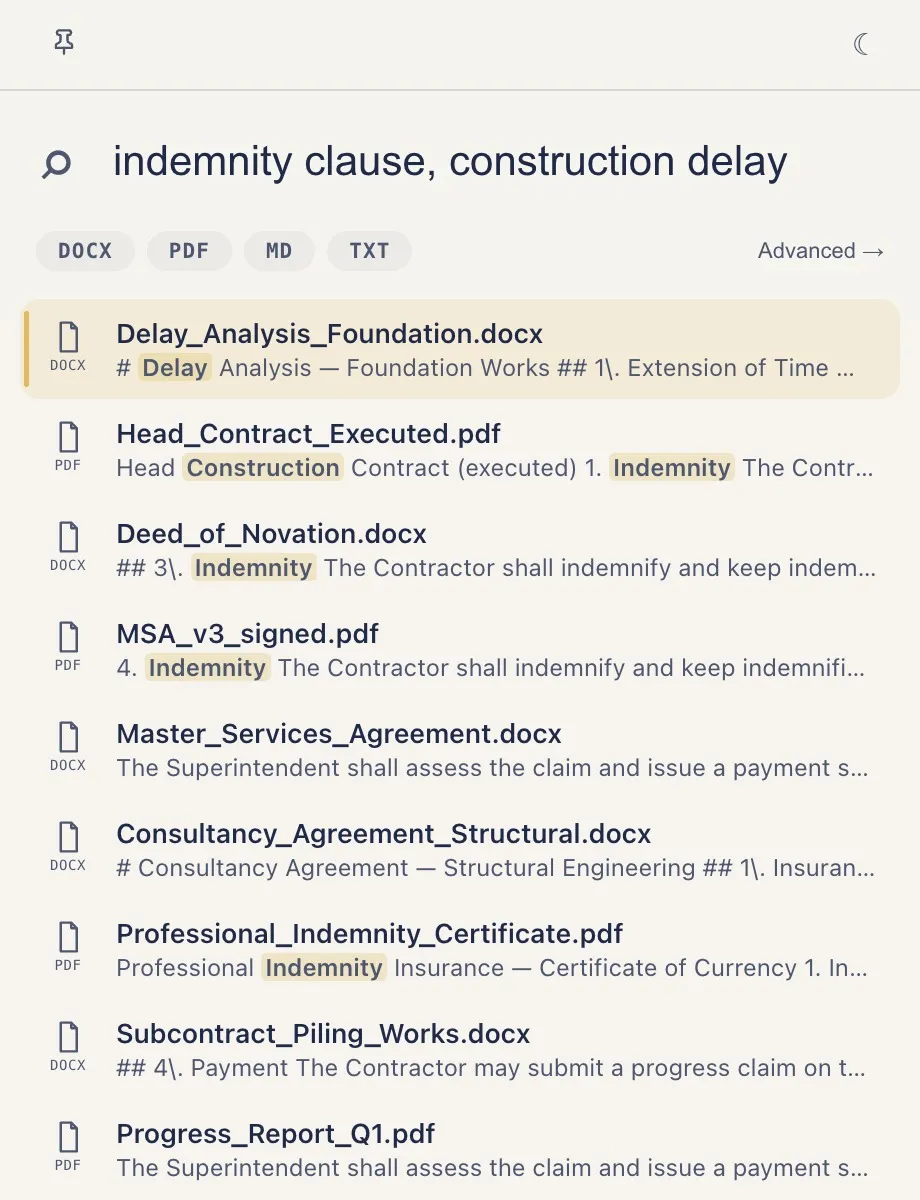
Fossick, a desktop app for Windows and Mac that searches your local documents by meaning, entirely offline, indexes text files, office documents, email and scans in one place without uploading anything.
It reads PDF, Word (.docx, .doc), Excel (.xlsx), PowerPoint (.pptx), OpenDocument text (.odt), plain text, Markdown, CSV, HTML, email (.eml, .msg) and images (PNG, JPG). Scanned PDFs and images are made searchable with on-device OCR during indexing, so there is no separate conversion step.
All of it runs locally: text extraction, OCR, embedding and search. Meaning is captured by the all-MiniLM-L6-v2 sentence-embedding model (384 dimensions, quantized, about 22 MB), which runs on your computer. The app works with the Wi-Fi switched off; only licensing touches the internet.
Some measured figures, from a 52-document mixed folder (Word, PDF including scanned pages, Excel, CSV, Markdown; 700 KB) on an Apple M1 MacBook with 8 GB RAM:
- First-time indexing took about 81 seconds, including model load and OCR.
- Re-checking the unchanged folder took about 7 seconds, because indexing is incremental.
- Median semantic search time was about 15-20 ms.
- The index used about 1.9 MB on disk.
Fossick is search, not chat. There is no chatbot, no generative AI and no summaries; it shows you the documents that match, and you open them. It is free to try on 1 folder of up to 200 files with no sign-up or card, and the full app is a one-time US$19.99 purchase with a 14-day money-back guarantee (see pricing). More detail is on the Fossick homepage.
How to Test a Tool Against Your Own Archive
The most reliable test is to point a tool at a sample of your real files and see whether it finds what you already know is there.
- Build a test folder with a born-digital PDF, a scanned PDF, a phone photo of a document, a screenshot, a spreadsheet and a saved email.
- Search for a phrase that only appears in the scan or the photo. If nothing comes back, the tool is not doing OCR on that file type.
- Search by description, not wording. Describe a document the way you remember it and see whether it ranks near the top.
- Turn the Wi-Fi off and repeat. A genuinely local tool should behave the same.
- Add and edit a file, then confirm the index picks up the change without rebuilding from scratch.
If you want to run this test with Fossick, you can download it for Windows or Mac and index your test folder in a few minutes.
Frequently asked questions
Can Windows Search find text inside scanned PDFs?
Usually not reliably. Windows Search indexes text it can extract through the filters installed for each file type, and a scanned PDF has no text layer unless OCR has already been applied. Tools with built-in OCR read the page image and make its text searchable.
Do I need to OCR my PDFs before a desktop search tool can index them?
It depends on the tool. Many keyword indexers expect a text layer, so you would run OCR first. Fossick runs OCR on scanned PDFs and images automatically, on your device, as part of indexing.
Does Fossick upload my files to run OCR or search?
No. Text extraction, OCR, embedding and search all run on your computer, and the app works with the Wi-Fi off. Only licensing touches the internet.
Is Fossick an AI chatbot that answers questions about my documents?
No. Fossick is semantic search: it finds documents by meaning and shows you the matches. It has no chatbot, no generative AI and does not write summaries.
Which file types can Fossick search?
PDF, Word (.docx, .doc), Excel (.xlsx), PowerPoint (.pptx), OpenDocument text (.odt), plain text, Markdown, CSV, HTML, email (.eml, .msg) and images (PNG, JPG). Scanned PDFs and images are handled with on-device OCR.