Desktop Search Software That Finds Files Without Exact Names or Folder Paths
Short answer: Desktop search software that retrieves files without exact names or folder paths uses semantic search. It indexes the text inside your documents and matches your plain-language description by meaning, not keywords. When it runs on-device, it can return the right file in milliseconds while nothing is uploaded and no chatbot is involved.
Free to try (1 folder, 200 files) · US$19.99 to keep · Mac & Windows
You know the document exists. You remember the client, roughly when you wrote it, and what it argued. What you don't remember is whether it was saved as final_v3.docx or Memo - revised, or which of a dozen nested folders it ended up in. Filename search can't help, and keyword search only works if you guess the exact words on the page.
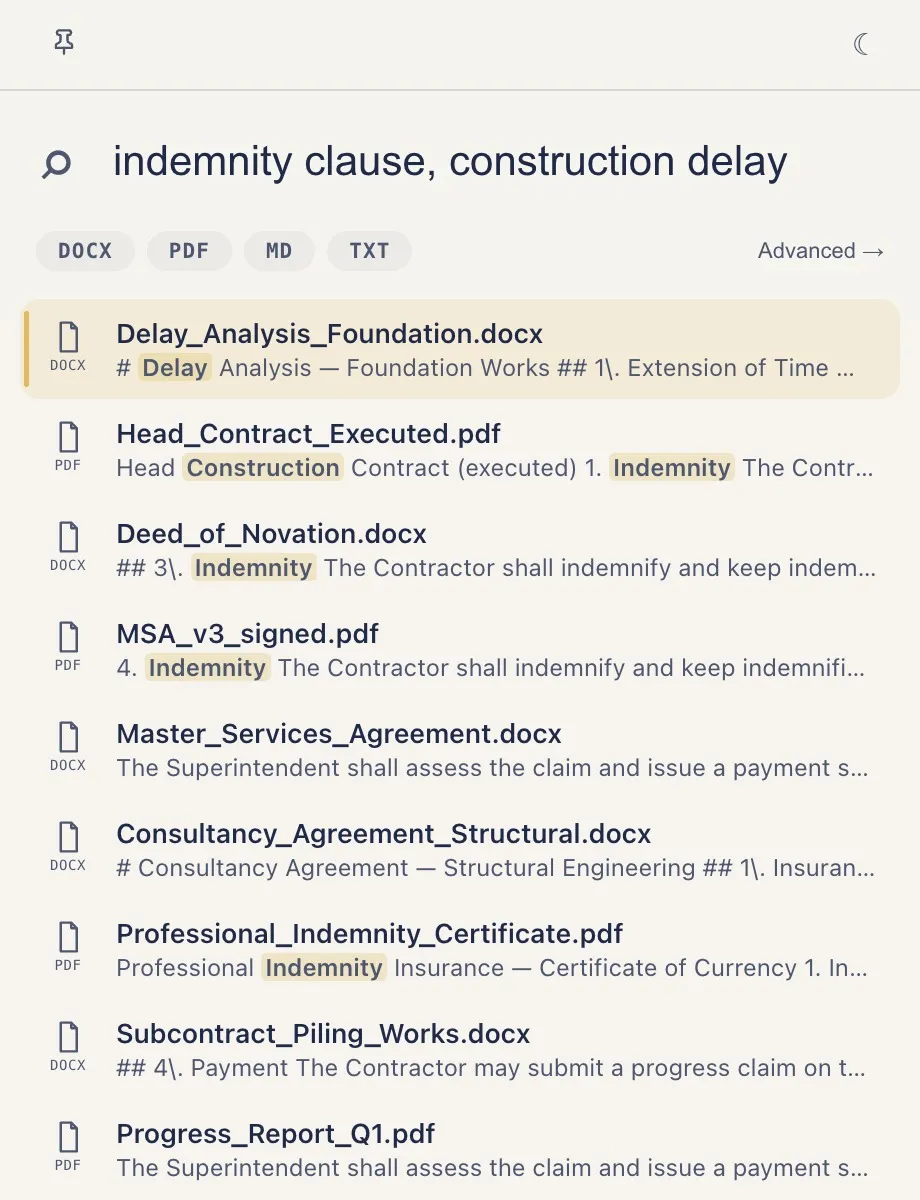
This article explains how desktop search software enabling instant retrieval without remembering exact file names or folder paths actually works. It covers what separates it from the search built into Windows and macOS, and why running it entirely on your own computer matters when your files are confidential. The worked example throughout is Fossick, a desktop app for Windows and Mac that searches your local documents by meaning, entirely offline.
Why file names and folder paths stop working
File names and folder paths fail because they record how you filed a document on one day, not what you will remember about it months later.
Most professionals recognise the pattern:
- Names drift. The same matter ends up as draft, final, final_v2 and client comments.
- Other people name things. Email attachments, downloads and colleagues' files arrive with their own conventions.
- Scans have no useful name. A signed agreement saved as Scan_0042.pdf is invisible to filename search.
- Folders get reorganised. Projects get archived, merged or moved, and the path you remember no longer exists.
The search built into your operating system helps only part of the way. Windows Search relies on an index of files and their properties and contents, but it largely matches the words you type. If the document says "termination for convenience" and you search for "ending the contract early", a keyword match can come back empty.
If this is your situation right now, the guide on finding a document you can't remember the name of walks through quick fixes before you install anything.
How desktop search software finds files without exact names or folder paths
It reads the text inside each file, converts that text into numerical representations of meaning, and compares your description against them.
Classic full-text search builds an index of words and returns files containing the terms you typed. Semantic search aims instead to match the meaning or intent of a query. The common technique is sentence embeddings. A model turns a passage of text into a vector, and passages with similar meaning end up close together. Research such as Sentence-BERT showed that this lets text be compared efficiently by meaning using vector similarity.
In practice, a semantic desktop search tool works like this:
- Extract text from each file: Word, PDF, spreadsheets, slides, email, and so on.
- Run OCR on scanned pages and images so their text can be searched too.
- Embed passages into vectors and store them in a local index.
- Embed your query and return the documents whose passages are closest in meaning.
So a search for "agreement letting the supplier walk away with notice" can surface a contract clause headed Termination for Convenience, even though none of your words appear in it.
Fossick uses the all-MiniLM-L6-v2 sentence-embedding model (384 dimensions, quantized, about 22 MB), which runs on your machine. It indexes PDF, Word (.docx, .doc), Excel (.xlsx), PowerPoint (.pptx), OpenDocument text, plain text, Markdown, CSV, HTML, email (.eml, .msg) and images (PNG, JPG). For a deeper comparison of the two approaches, see full-text search vs semantic search.
Comparing the ways to find a file you can't name
The right method depends on what you actually remember: a name, an exact phrase, or only what the document was about.
| Method | What you must remember | Finds by meaning? | Files leave your device? |
|---|---|---|---|
| Filename search (Explorer, Finder) | Part of the name | No | No |
| Built-in content search (Windows Search, Spotlight) | Exact words or metadata | Limited | No |
| Cloud drive search | Keywords; files must be in the cloud | Varies | Yes, stored on provider servers |
| AI chat assistants | A question to ask | Yes | Often processed in the cloud |
| On-device semantic search (e.g. Fossick) | What the document was about | Yes | No |
Keyword search is still the better tool for exact identifiers such as an invoice number, a case reference or a part code. Semantic search covers the gap when you remember the idea but not the wording. Many people keep both: the operating system's search for names and known strings, and a semantic tool for everything vaguer.
If your filing system has already given up, organising and finding documents without folders explains why description-based search reduces how much tidy filing you need.
How fast is "instant" when everything runs on your computer?
Once a folder is indexed, an on-device semantic search typically takes milliseconds. The real time cost is the one-off indexing step.
Here is what Fossick measured on 2026-09-21 on an Apple M1 MacBook with 8 GB RAM, using its engine CLI on a folder of 52 mixed documents (Word, PDF including scanned pages, Excel, CSV and Markdown; 700 KB in total):
- Search: about 15-20 ms median per semantic search (10 queries, 3 runs).
- First-time indexing: about 81 seconds from scratch, including model load and OCR.
- Re-checking an unchanged folder: about 7 seconds.
- Index size: about 1.9 MB on disk.
Re-indexing is incremental, so only new or changed files are processed again. Adding this week's documents does not mean rebuilding everything.
These figures come from a small test folder. Larger collections, and folders with many scanned pages, will take longer to index the first time. Plan to let the first index run while you do something else. For bigger archives, see how to search large document sets quickly.
Why on-device search matters for confidential documents
When indexing and search happen on your own computer, no third party ever receives copies of your files.
That matters for client contracts, financial records, engineering specs and research data. Cloud search tools and AI assistants can be useful, but they process your content on someone else's servers. That brings contracts, data-processing terms and risk reviews into the decision.
With Fossick, text extraction, OCR, embedding and search all run locally. Documents are never uploaded, and the app works with the Wi-Fi switched off. Only licensing touches the internet. You can check this yourself: disconnect from the network and run a search.
It is also worth being clear about what Fossick is not. It is search, not chat. There is no chatbot, no generative AI and no summaries. You type what you remember, and it returns a ranked list of your own documents to open and read. For professionals this is often the safer design, because there is no generated answer that might misstate what a document says. You always see the source itself.
For more background, on-device AI search, explained covers how local models differ from cloud services.
Getting started: setup and writing better queries
Setup takes a few minutes: install the app, point it at a folder, let it index, then search with plain descriptions.
- Download Fossick for Windows or Mac.
- Choose a folder, for example a client archive or your Documents folder.
- Let the first index finish. Scanned PDFs and images are OCR'd on-device automatically.
- Search by describing the document, not by guessing its title.
Queries that work well
- Describe the substance: "memo arguing the non-compete is unenforceable" beats "memo".
- Add context you remember: the type of document, the subject, the situation.
- Try a second phrasing if the first results are close but not right.
- Switch to keyword search for exact strings such as reference numbers.
Fossick is free to try with no sign-up or card, limited to 1 folder and up to 200 files. A single one-time purchase of US$19.99 (see pricing) unlocks every folder and file and includes every future update. It comes with a 14-day money-back guarantee.
Frequently asked questions
Can I find a file if I don't remember any of the exact words in it?
Yes, as long as you remember roughly what it was about. Semantic search compares the meaning of your description with the meaning of the text in each document, so the words do not have to match. If you remember nothing about the content, sorting by date or file type is usually the better route.
Does semantic desktop search replace Windows Search or Spotlight?
It complements them. Built-in search is still the quickest way to launch apps, find files by name, or match an exact phrase or reference number. A semantic tool covers the cases where you only remember the idea behind a document.
Will it find text in scanned PDFs and photos of documents?
Fossick runs OCR on scanned PDFs and images (PNG, JPG) automatically, on your device, so their text becomes searchable by meaning like any other file. Results depend on scan quality. Clear, upright pages recognise far better than skewed or low-resolution ones.
Is Fossick an AI chatbot?
No. Fossick is semantic search, not chat: it has no chatbot, no generative AI and no summaries. It uses a small local embedding model to rank your documents by relevance, and you open the results yourself.
Are my documents uploaded anywhere?
No. Text extraction, OCR, embedding and search all happen on your computer, and Fossick works with Wi-Fi turned off. The only internet connection is for licensing, not for your files.